
+1 Upgrade Per Kill Controls & Settings (Mobile HUD)
Mobile controls for +1 Upgrade Per Kill on Roblox: combat HUD, touch buttons, and every Settings option seen in gameplay footage (defaults included).
How do you move and fight on mobile?
Verified footage is from phone and tablet Roblox, not desktop. In the arena you steer with a virtual joystick on the left. On the right you get a sword button (attack), a green up-arrow (jump), and—when you hold golden apples—a golden apple button. A small tray-shaped button also appears on the right; we have not verified what it does, so this guide does not assign it a name or function.
Combat layout stacks information around that:
- Top-right: compact
+1 UPGRADE PER KILLreadout with Gold, Upgrade n/34, and Streak. - Top-center: lines like
PvP enabled!or quest completion banners (for exampleQUEST DONE: Drop into the arena 8 timesin one frame—exact quest text can vary). - Bottom: armor icons, hearts, a green
UPGRADE n/34bar, and a hotbar (class weapon first, then sword/tools, often golden apples in the last slot with a stack count).
Upper-right also shows a house icon and an eye icon; only the text [L] Lobby (keep gear) is quoted in our sources—we do not describe unverified shortcuts for those buttons.
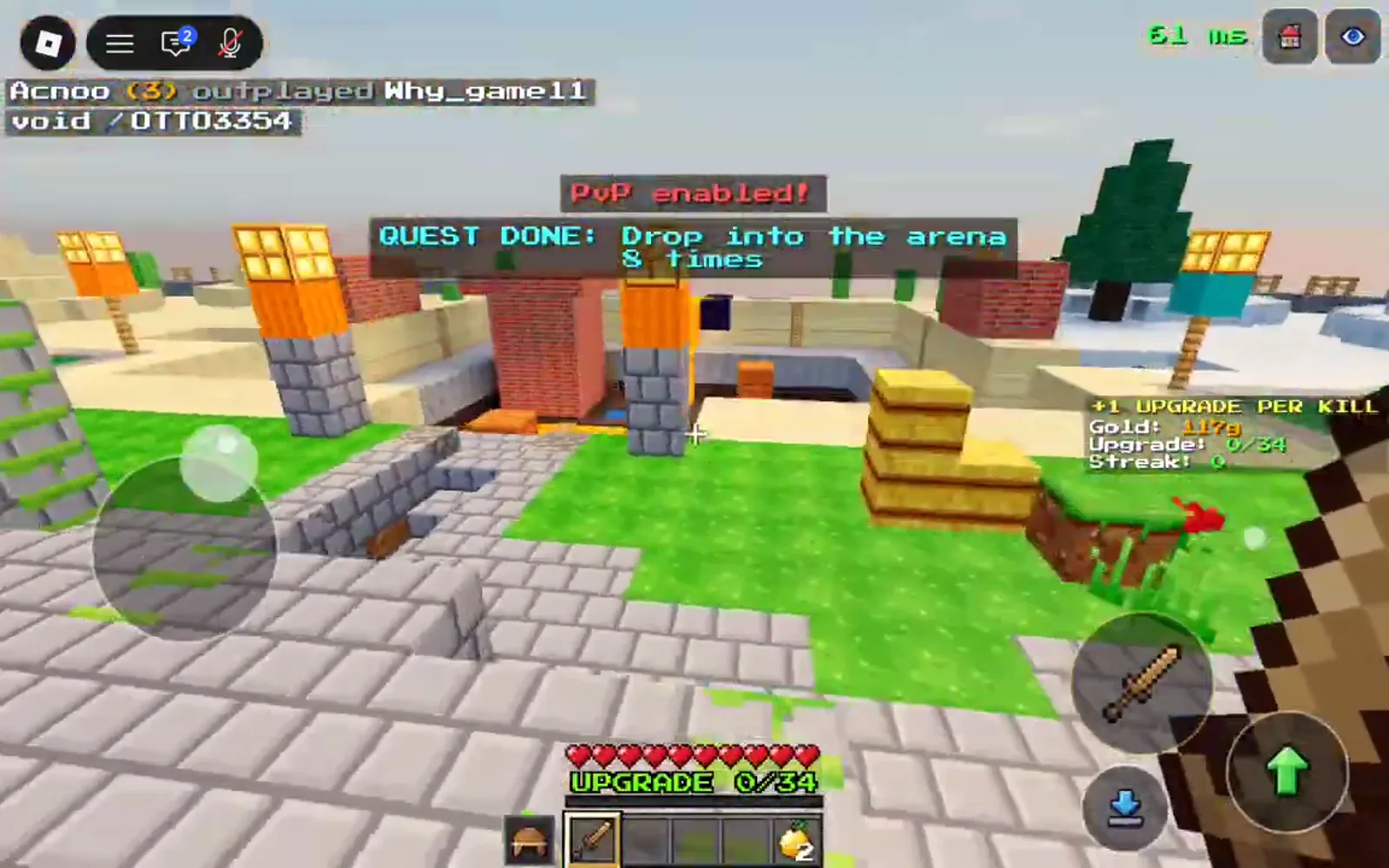
Figure: Left stick, right attack/jump cluster, and bottom upgrade bar during PvP.
While a weapon is selected, the center of the screen can show stat text such as Wooden Sword · 4 dmg · 1.6 speed at Upgrade 4/34 in captured gameplay. We are not treating that as a full damage table for every tier—only this one sword line was read clearly from frames.
What does the Settings window change?
Open Settings from the gear icon in the lobby top bar (same gear while in menus). The window lists combat and camera helpers; a footer note reads Changes apply at once.
| Setting | Options seen | Default in footage |
|---|---|---|
| Aim Assist | Off / Low / Normal / Strong | Normal selected |
| Auto Attack | ON / OFF | ON |
| Auto Jump | ON / OFF | ON |
| Auto Sprint | ON / OFF | ON |
| Tap to Attack | ON / OFF | ON |
| Camera Sensitivity | − / value / + | 1.0 |
| Button Size | − / value / + | 100% |
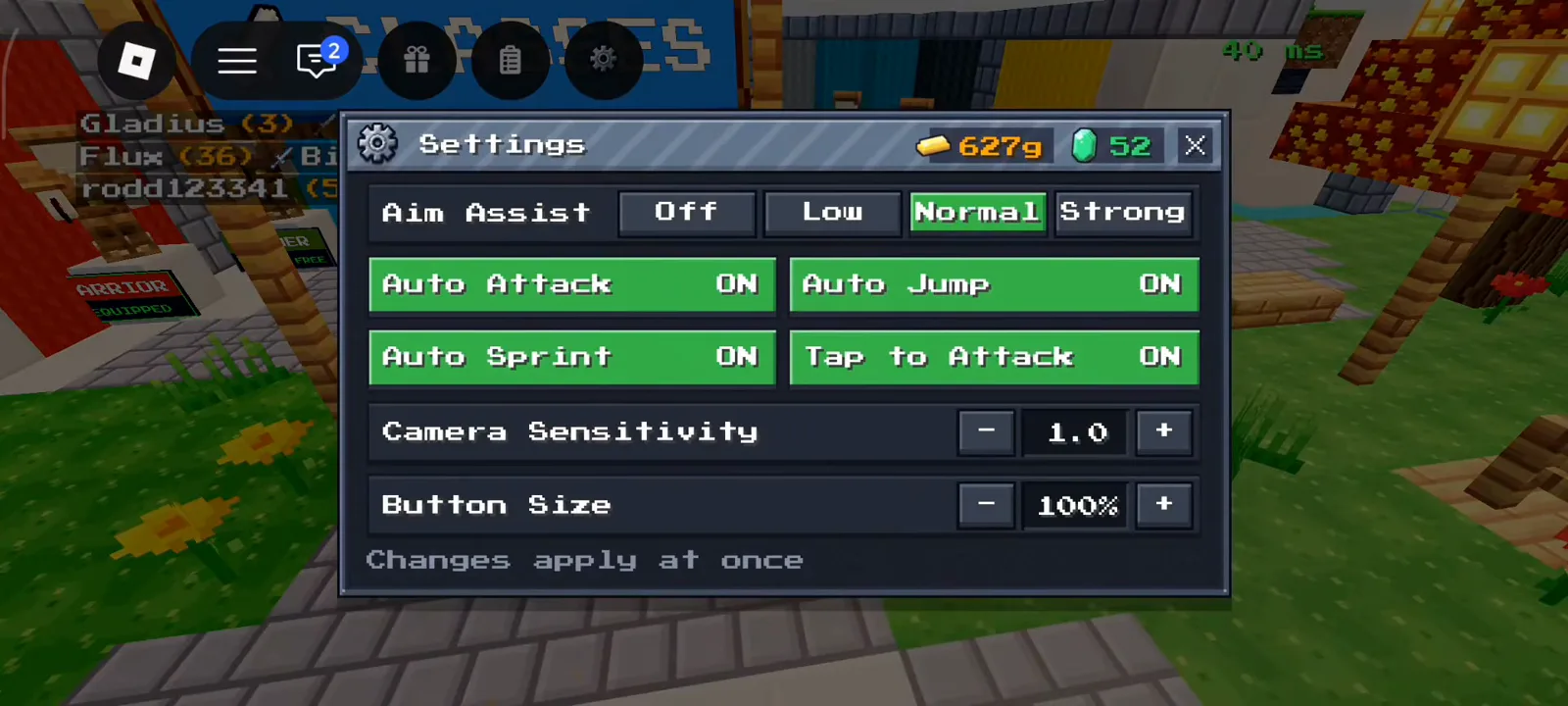
Figure: Full Settings list with Normal aim assist and auto options enabled.
Aim Assist nudges melee toward targets—try Low or Off only if you prefer manual aim and your device feels sluggish. Auto Attack, Auto Jump, Auto Sprint, and Tap to Attack reduce repeated taps during long streaks; turning them off is a personal comfort choice, not something we can rank from footage alone.
Camera Sensitivity and Button Size use minus and plus controls. If thumbs cover the jump button, shrink Button Size slightly before lowering sensitivity.
How do lobby menus relate to controls?
Controls above cover movement and combat. Economy and loadout buttons live on the lobby right rail—Classes, Locker, Upgrades, Index, Shop, Crates—and do not change how you steer in the arena. Redeem codes under Shop → CODES, spend Gold in Upgrades → Perks, or review gear tiers in the upgrade ladder. For first-match flow see the beginner guide, for golden apples see how to heal, and for codes see working codes.
Play the experience: +1 Upgrade Per Kill on Roblox.
Sources and credits
Screenshots on this page were captured from community gameplay videos on YouTube (MBT — R1JmCacefj4; Xaidenplayzminecraft — M2AXjk_iSY4; Prolack012 — fELzp0zADZ8) and are used for illustrative reference; all rights belong to the respective creators. Numbers shown were read directly from those frames on 2026-10-25; the game updates often, so values may have changed. This is an unofficial fan site, not affiliated with Roblox Corporation or Block PvP.
- https://www.youtube.com/watch?v=R1JmCacefj4
- https://www.youtube.com/watch?v=M2AXjk_iSY4
- https://www.youtube.com/watch?v=fELzp0zADZ8
Last verified: 2026-10-26
Related Articles
classes
All 10 Classes in +1 Upgrade Per Kill (Roblox)
Every class in +1 Upgrade Per Kill on Roblox: tags, kit, kill resupply, Gold prices, and panel pros/cons from captured Classes screens.
codes
+1 Upgrade Per Kill Codes (Roblox): WELCOME Reward
Every +1 Upgrade Per Kill code we have seen on screen: WELCOME is confirmed (60 Emeralds + Wood Crate), eight more are unconfirmed. How to redeem in Shop.
guides
+1 Upgrade Per Kill Beginner Guide — First 10 Minutes (Roblox)
How +1 Upgrade Per Kill works on Roblox: kill upgrades, lobby HUD, Playtime rewards, Daily Quests, Group Reward, classes, and what death resets.
Was this helpful?
Thanks for the feedback!